What can the AI agent Hermes do?

What can the AI agent Hermes do?

CryptonCrypton
938 min

Hermes is an AI agent from Nous Research. Roughly speaking, it is an analogue of OpenClaw.

In general, their functionality does not differ much, they:

  • Have advanced long-term memory

  • Can interact with files on your device, open a browser, etc.

  • Plan more complex tasks and can organize parallel agent work.

However, quite recently, Hermes released a full-fledged PC application β€” no more interacting with the console.

Moreover, Nous Research's creation still has broader functionality, and combined with the PC application β€” it is not only effective but also very convenient to use!

Therefore, in this article, we will cover Hermes β€” its setup and all the features of the application, as well as provide some usage examples.


Installation + Errors #

First, you need to download the application here πŸ‘‰ https://www.hermes-ai.net/desktop/

The whole process is a lottery: either everything will work out for you without problems, or you will spend a couple of hours (or days) trying to solve the problem.

For example, during installation, we encountered this error:
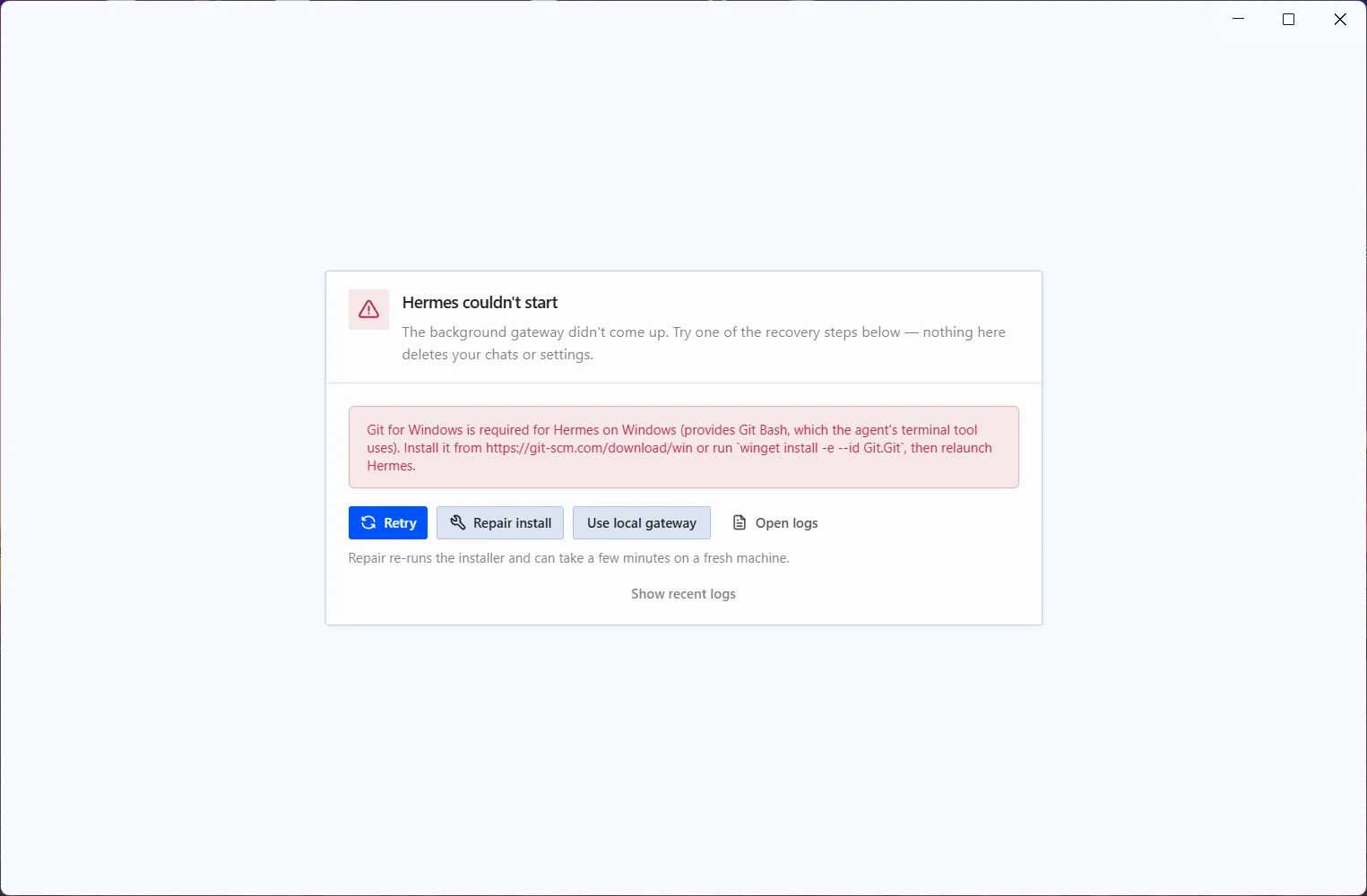
To fix it, you need to download and install git from this site: https://git-scm.com/

If, after restarting and clicking "Repair Install" and "Retry," the error does not disappear, it means Hermes cannot find git, and you need to enter the following command in the Windows console:

setx HERMES_GIT_BASH_PATH "path to git"

To find the path for git, you need to enter the following command in the command line:

where git
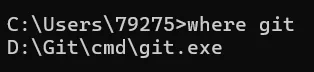
You need to go to this folder, find the 'bin' folder there, and copy the path to git.exe specifically within the 'bin' folder.

The final command should look like this:

setx HERMES_GIT_BASH_PATH "D:\Git\bin\bash.exe"

If, after restarting your PC, you encounter a similar error again, use this command (replace the path with your own):

[Environment]::SetEnvironmentVariable("HERMES_GIT_BASH_PATH", "D:\Git\bin\bash.exe", "User")

After this, we encountered the following error:
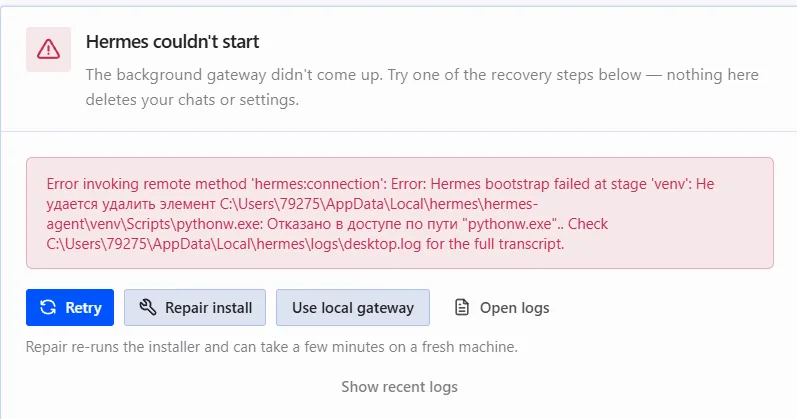
We resolved this by terminating the "python" process via the task manager.

If you cannot resolve these or any other errors while working with Hermes, describe the problems to any neural network, also providing the logs.

Logs can be found with this command in the console:

explorer "%LOCALAPPDATA%\hermes\logs"

Or:

explorer "$env:LOCALAPPDATA\hermes\logs"

Getting Started #

After that, restart the application, and everything should work. Next, you will need to select an AI model.

The easiest way is to choose OpenAI OAuth β€” you follow the link and log in with your ChatGPT account.

If you want it for free, use an OpenRouter account. In any case, you can configure the models after launching.
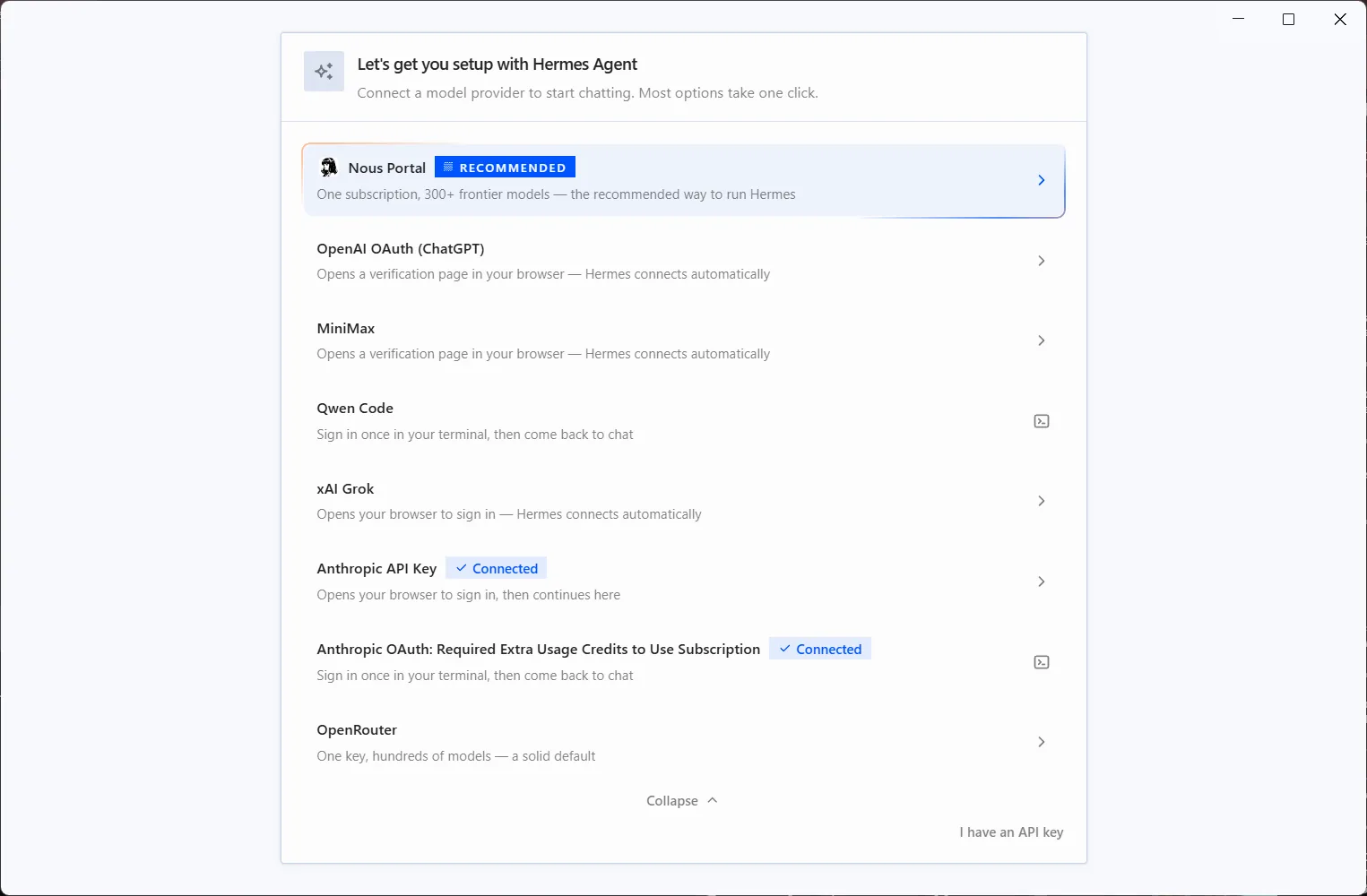
The main working panel will open.
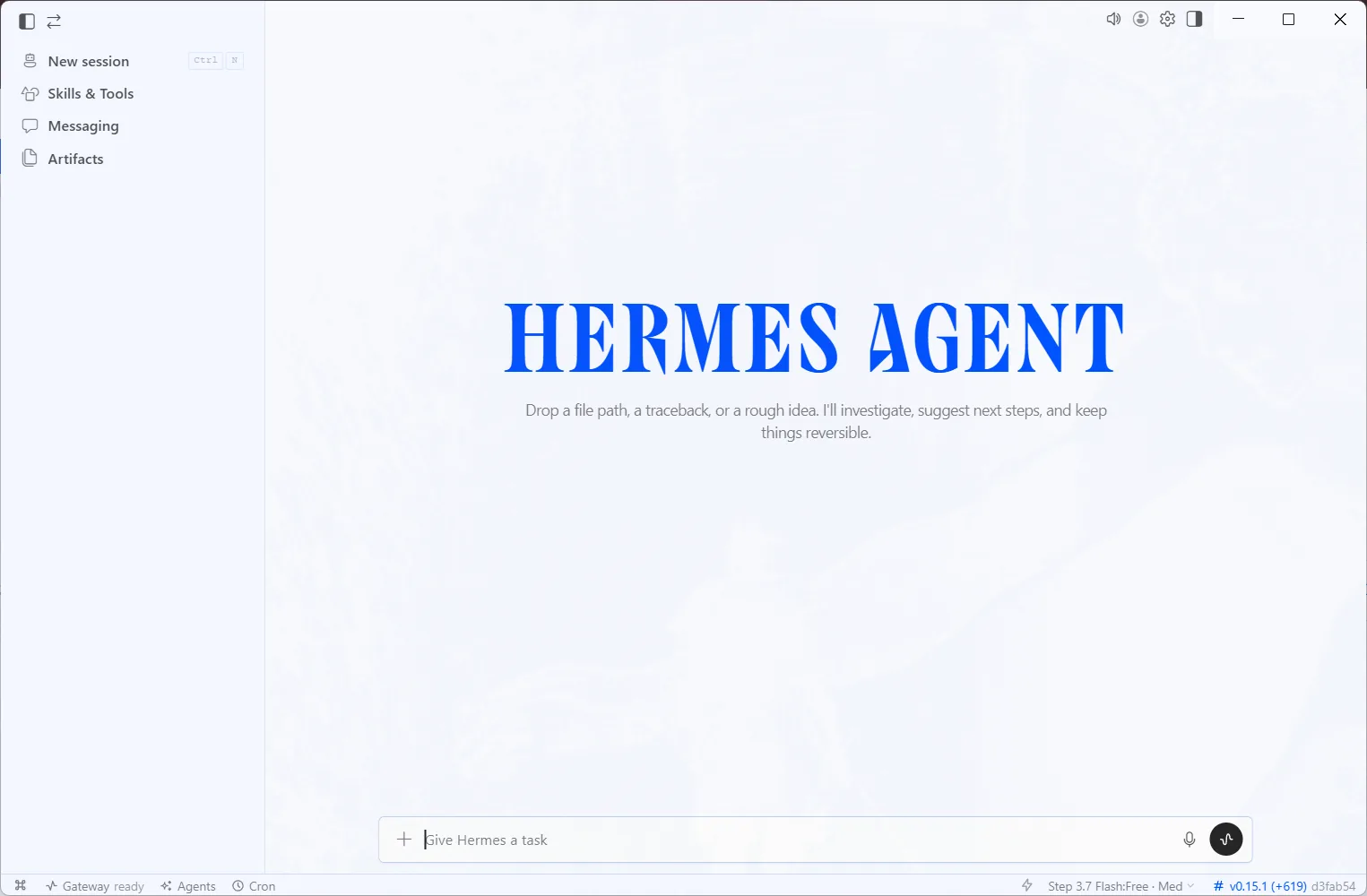
At this stage, you can configure interaction via Telegram β€” open the "Messaging" tab and select Telegram.
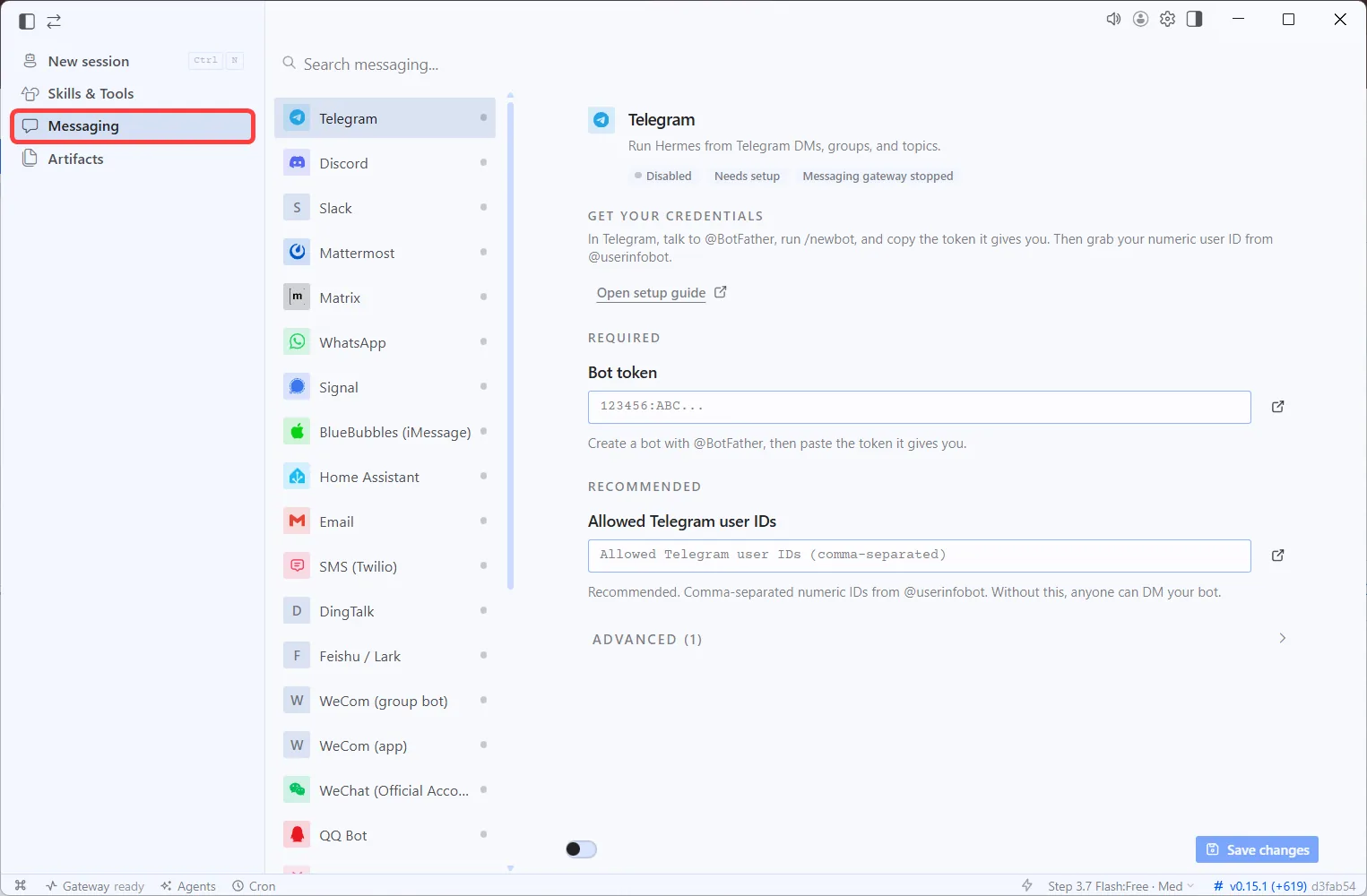
In the "Bot token" field, paste the bot token created in @BotFather, and in the "Allowed Telegram user IDs" panel, paste your Telegram ID (the ID itself, not the username; you can find it using this bot β€” @username_to_id_bot) so that only you have access to the bot.

And click "Save changes."
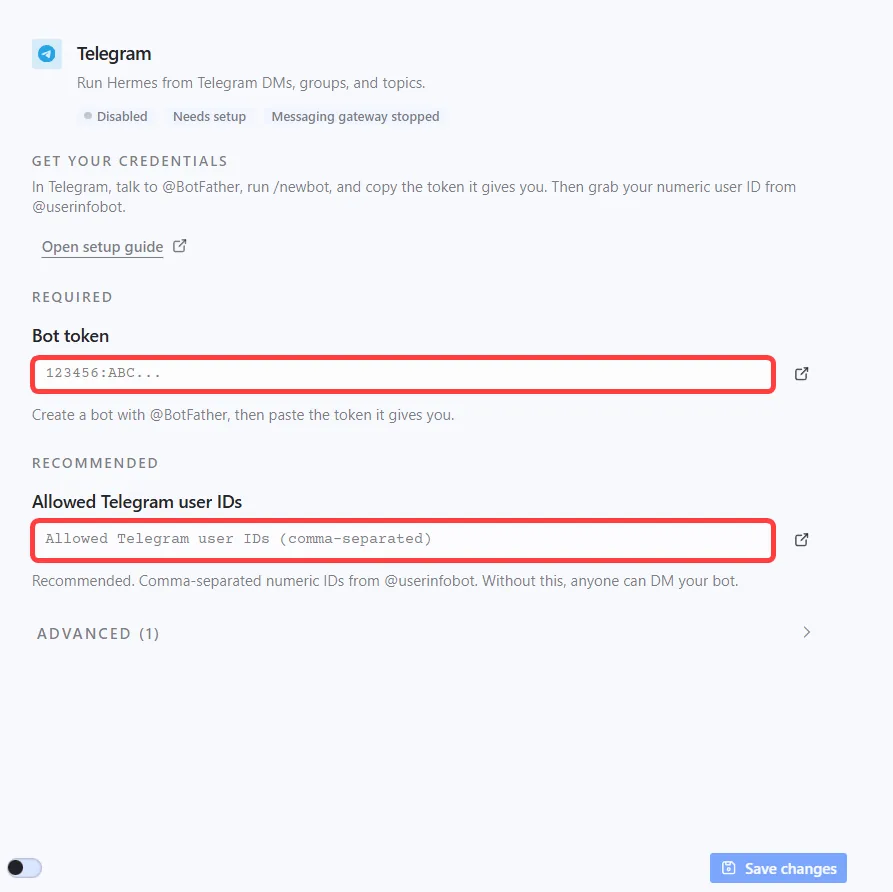
For the bot to work, you need to start the Gateway, and you do it like this:
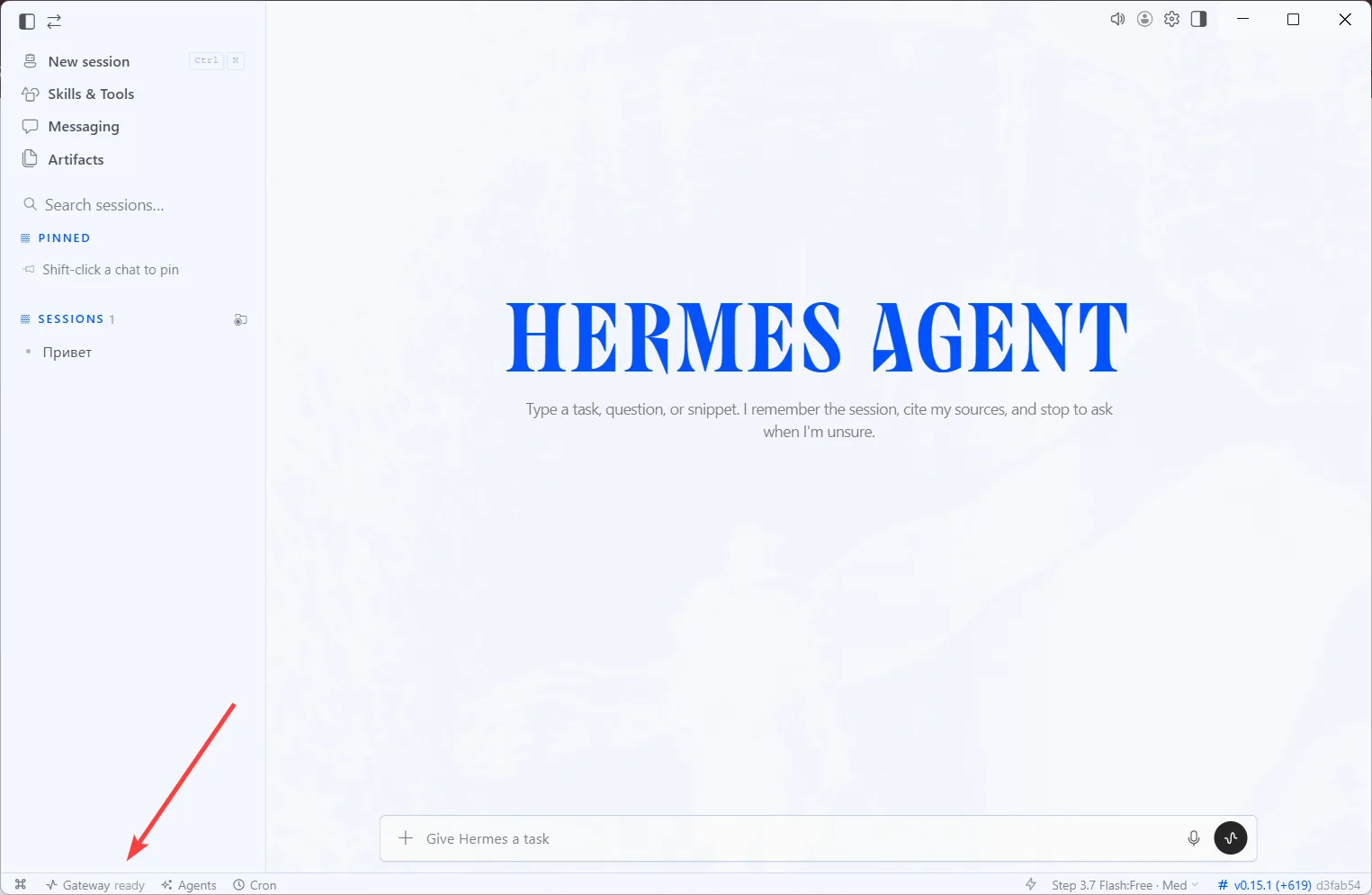
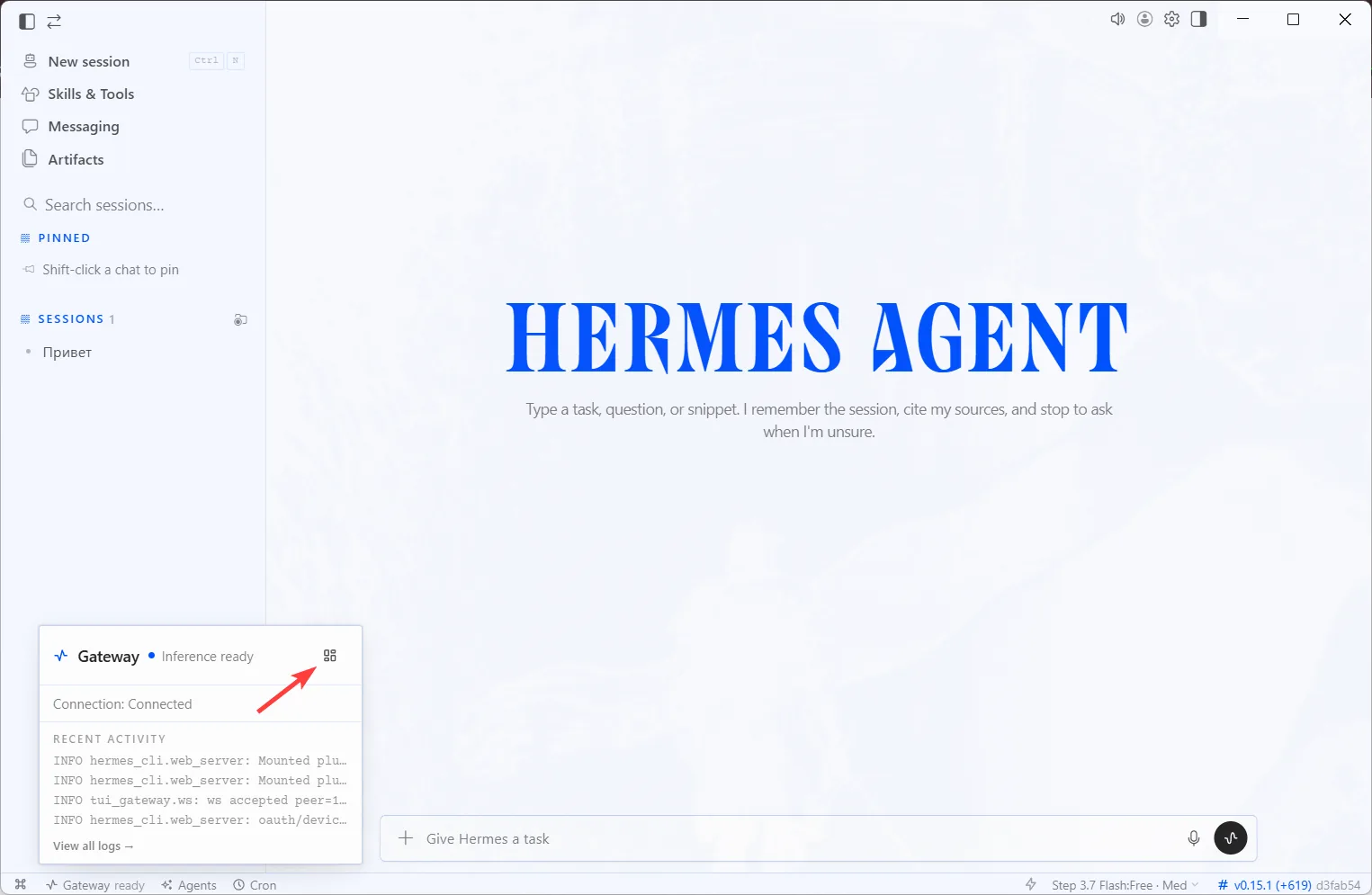
However, we recommend interacting through the application itself, as it is much more convenient than Telegram. Telegram is best left as a channel for regular notifications (more on this later).

If you want to change the model, you can do it here:

Go to the "Skills & Tools" section and disable the items you don't need (to save tokens if the AI decides to initiate some skill).

AI Model Configuration #

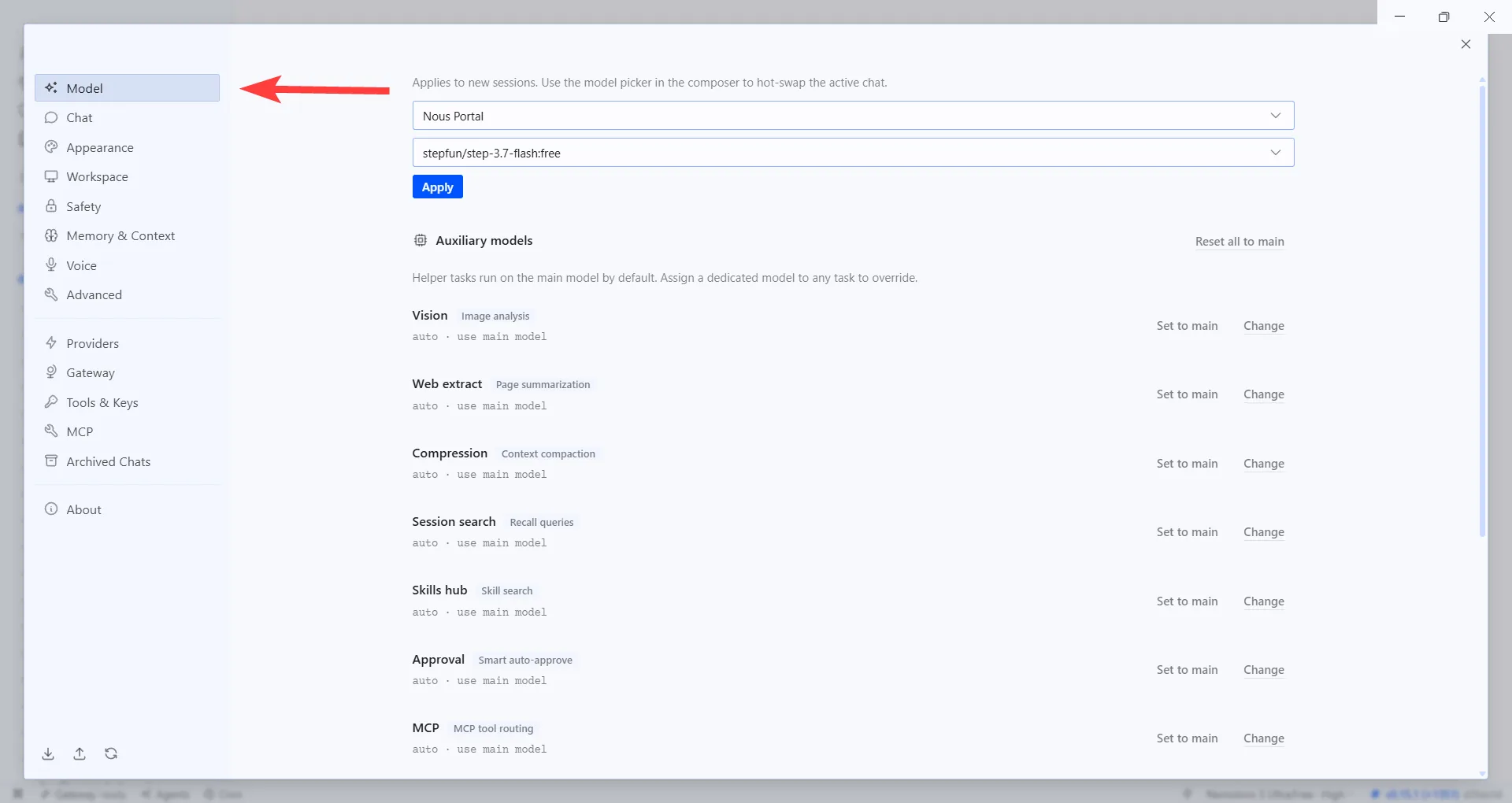
Hermes allows you to configure different models for different tasks, which is done here:

You can set up different models for image analysis, reading web pages, memory compression, etc.

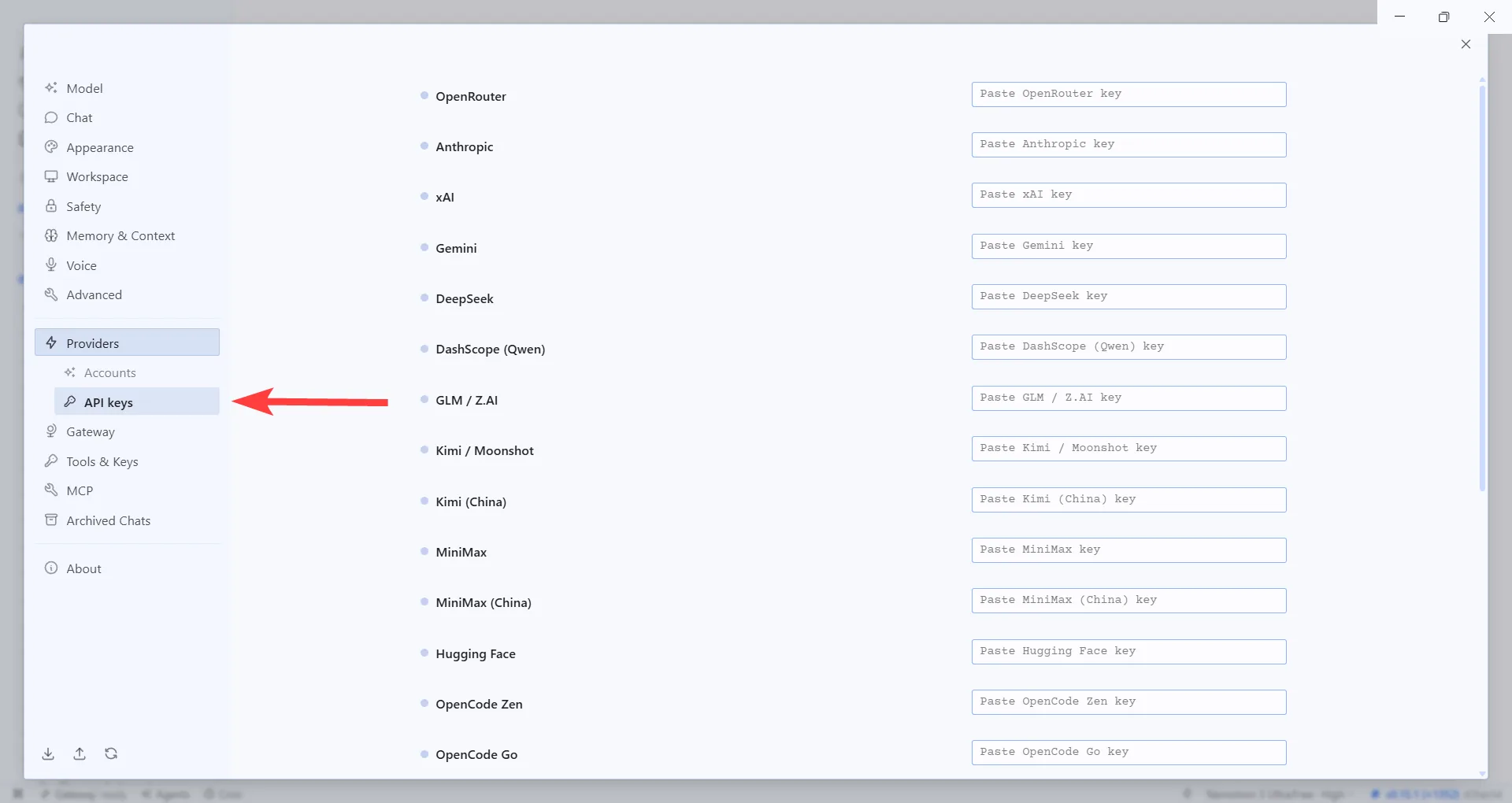
In the "Providers" section, you can configure AI models.

And below, provide API keys:

Automation #

The desktop application makes automation very convenient, for example:

  • Daily news summary

  • Check RSS feeds or websites once an hour

  • Website monitoring

  • Periodic backups

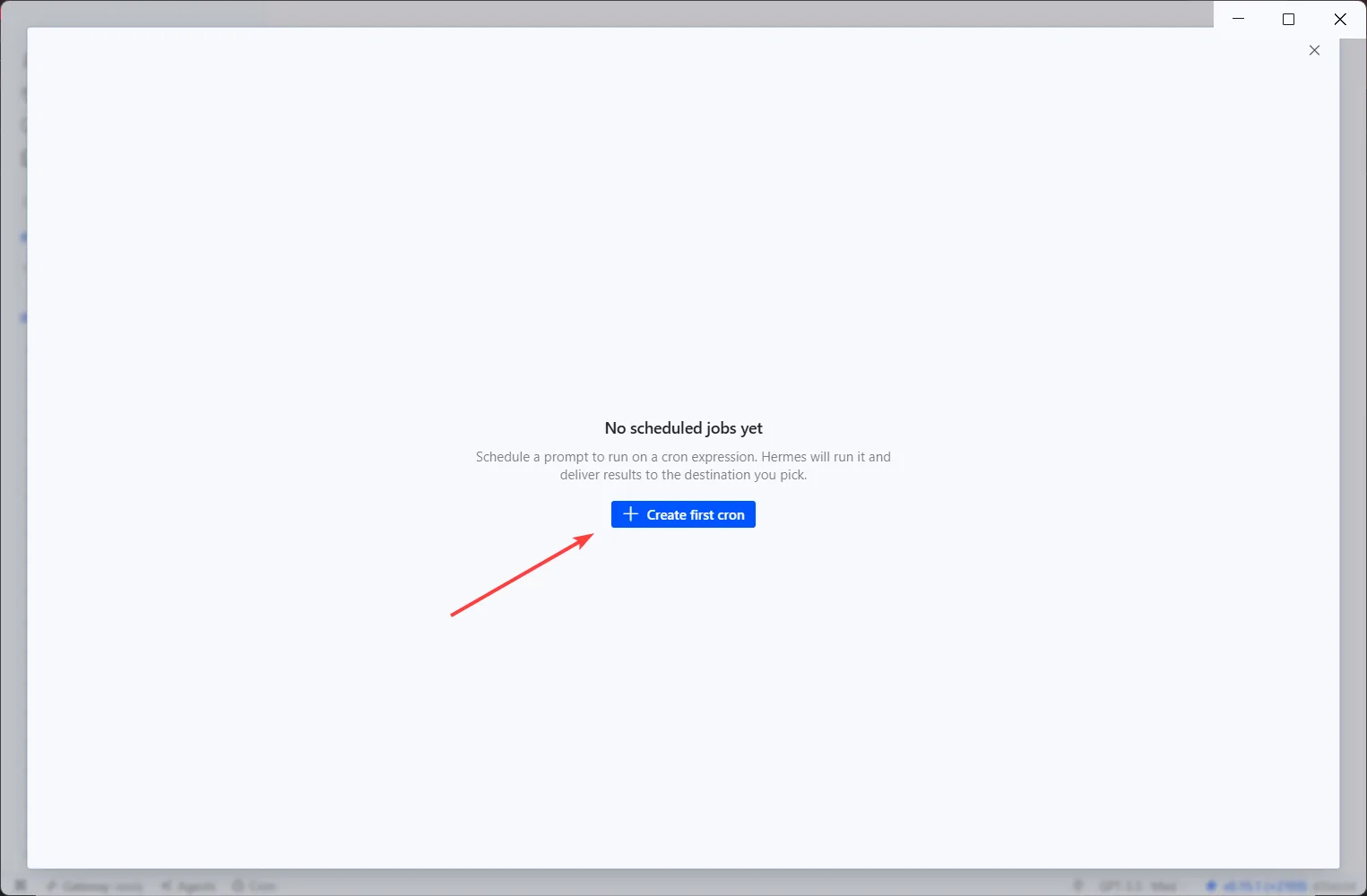
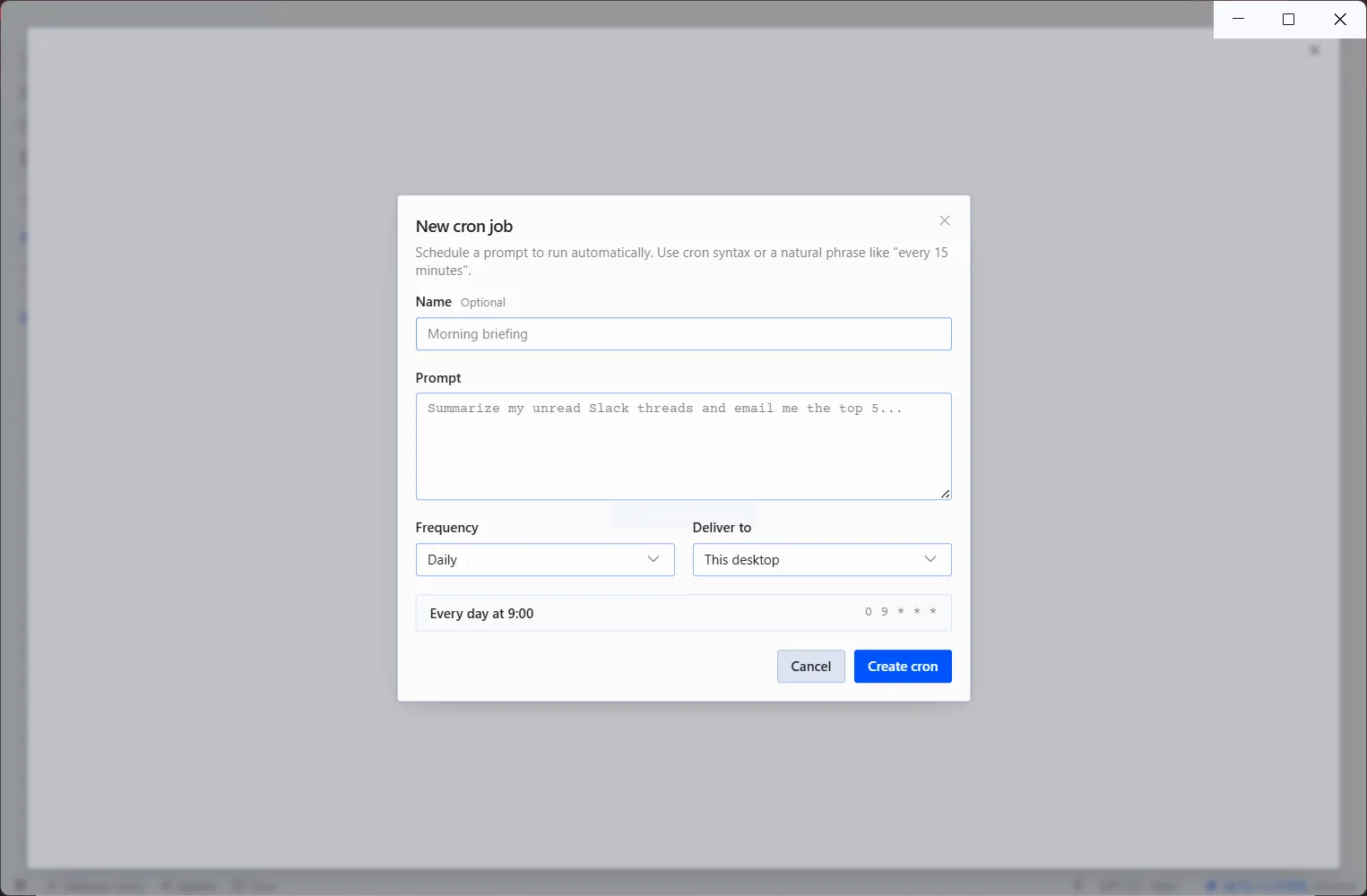
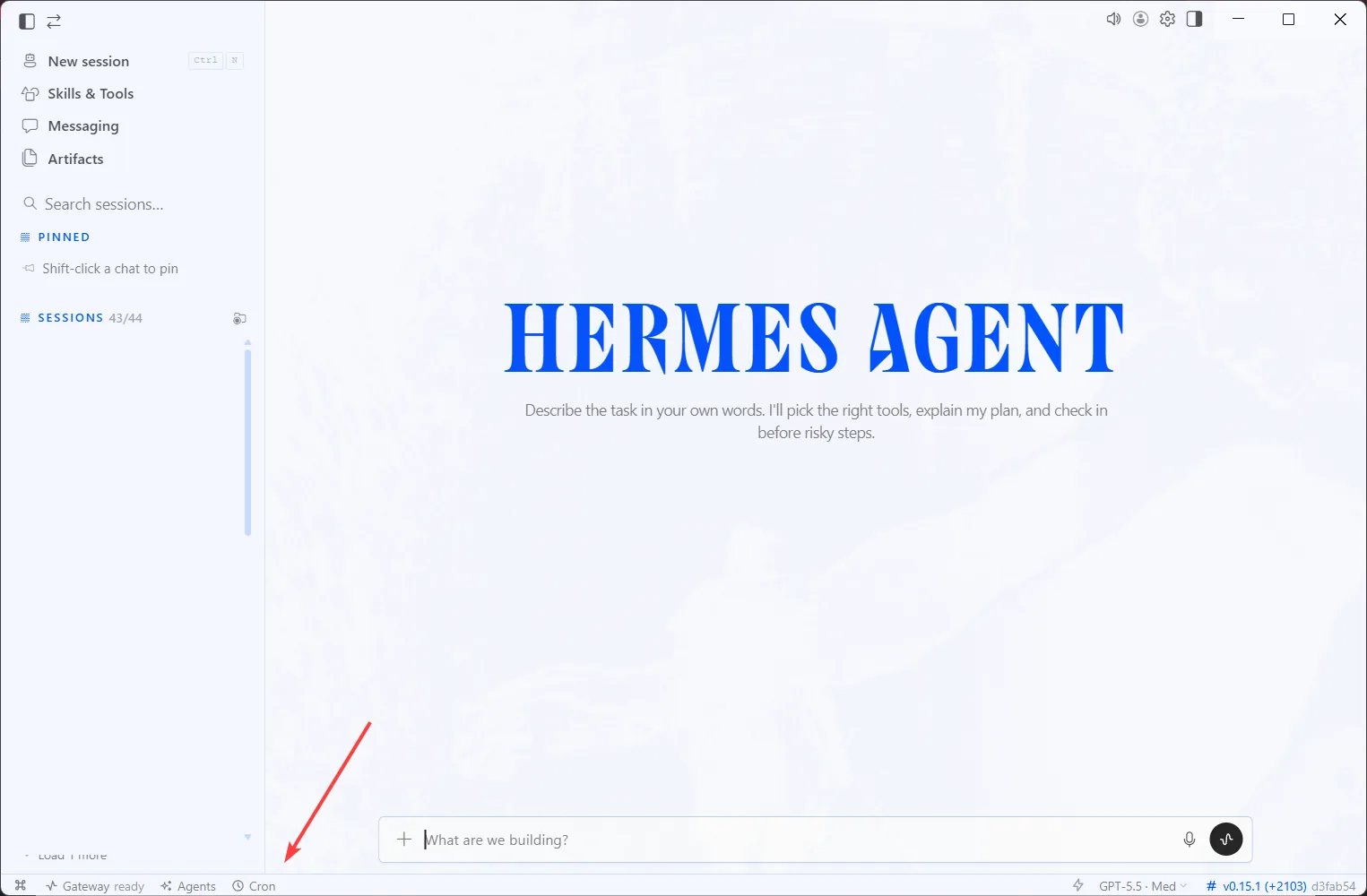
To create the desired Cron task, you can do it manually here:

Alternatively, describe what you need to be done in the chat, and the AI will create a recurring task itself (be sure to check and edit it in the same menu afterwards).

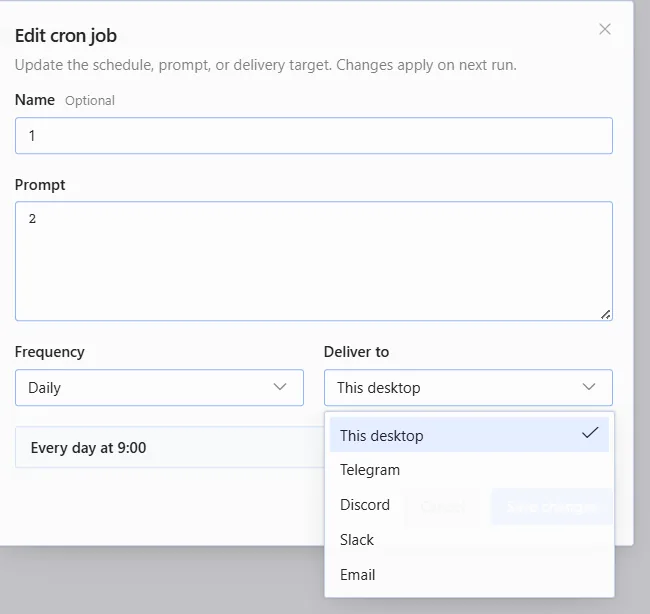
In the "Deliver to" section, choose where you want to receive the information. The easiest way is to receive it via Telegram.

To ensure tasks run even without the Hermes application open, open the command prompt and type the following command; then, in two prompts, you'll need to enter "Y":

hermes gateway install

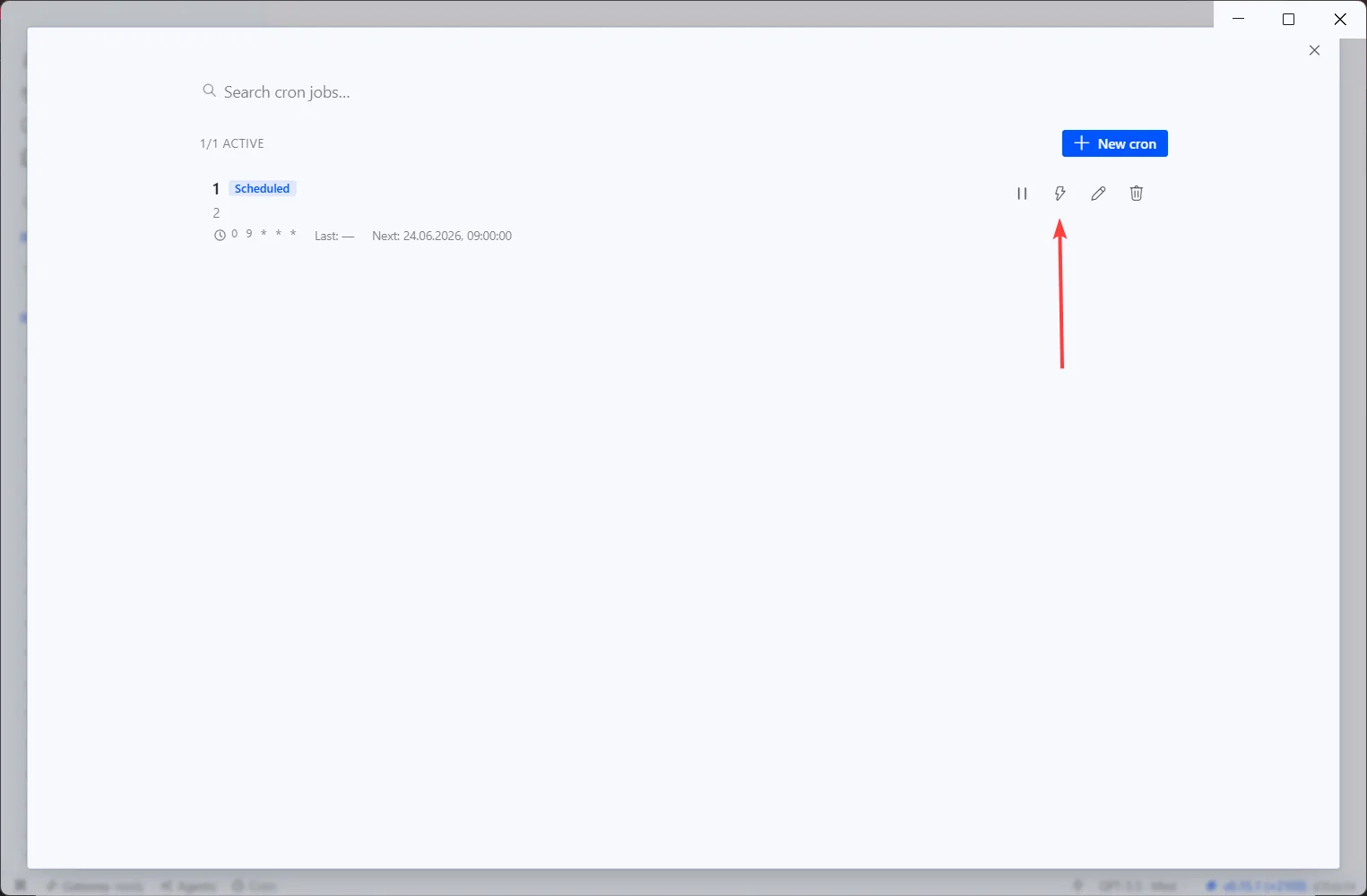
After that, be sure to test if the task is working. You can do this by clicking this button:

If the task didn't work, describe the issue in the chat and ask the AI to resolve it.

Of course, to make this work, you need to keep your PC turned on.

Memory #

The main memory consists of two files:

  • MEMORY.md β€” general notes about the agent's dialogues.

  • USER.md β€” user profile: name, role, time zone, communication style, preferences.

At the beginning of each session, Hermes reads the files from the disk and integrates them into the system prompt as a frozen block. Changes made during operation are recorded immediately.

To prevent these two files from ballooning, there is a size limit. Therefore, we recommend asking the agent to save the entire session into a separate md-document in a designated folder after each of your sessions. Then, ask it to review the files to restore context.

Moreover, all this can be automated. To do this, ask to create a Cron task daily at 23:00 with the following prompt:

You are a diary assistant. Your task is to create an evening summary for today.

RULES:
1. Today's date: $(date +%Y-%m-%d)
2. Diary path:
3. First, make sure the file exists. If not, create it with the header "## YYYY-MM-DD β€” Diary".
4. Analyze today's sessions using session_search (query="today", sort="newest", limit=5) and highlight 3-5 important facts.
5. Add a block "### Evening Summary" to the file with brief bullet points.
6. Each bullet point should be 1-2 lines, only facts: what was decided, what was learned, what was planned.
7. Do not add fluff, do not comment, do not repeat the same thing.
8. Use patch or file write to add the summary to the end of the file.
9. If there were no important events, write "A simple day, nothing noteworthy."

Format:
### Summary
- ...
- ...
- ...

Profiles #

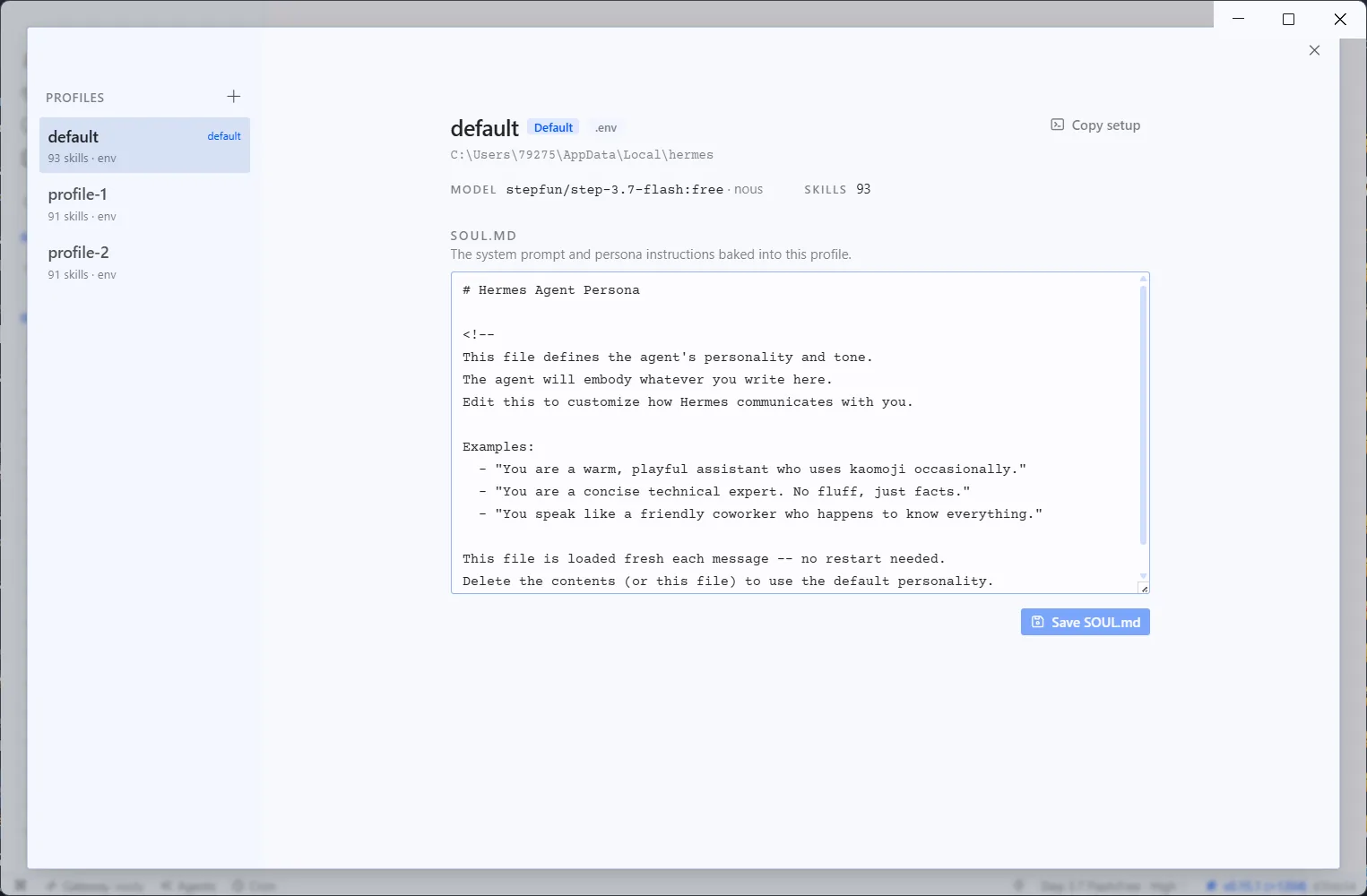
For full functionality, you also need to set up profiles β€” these are like separate workspaces with their own chats, skills, file access, configurations, and more.

For example, if you manage multiple projects, you can create different profiles to avoid mixing personal projects and work. In essence, it's similar to the project feature in ChatGPT.

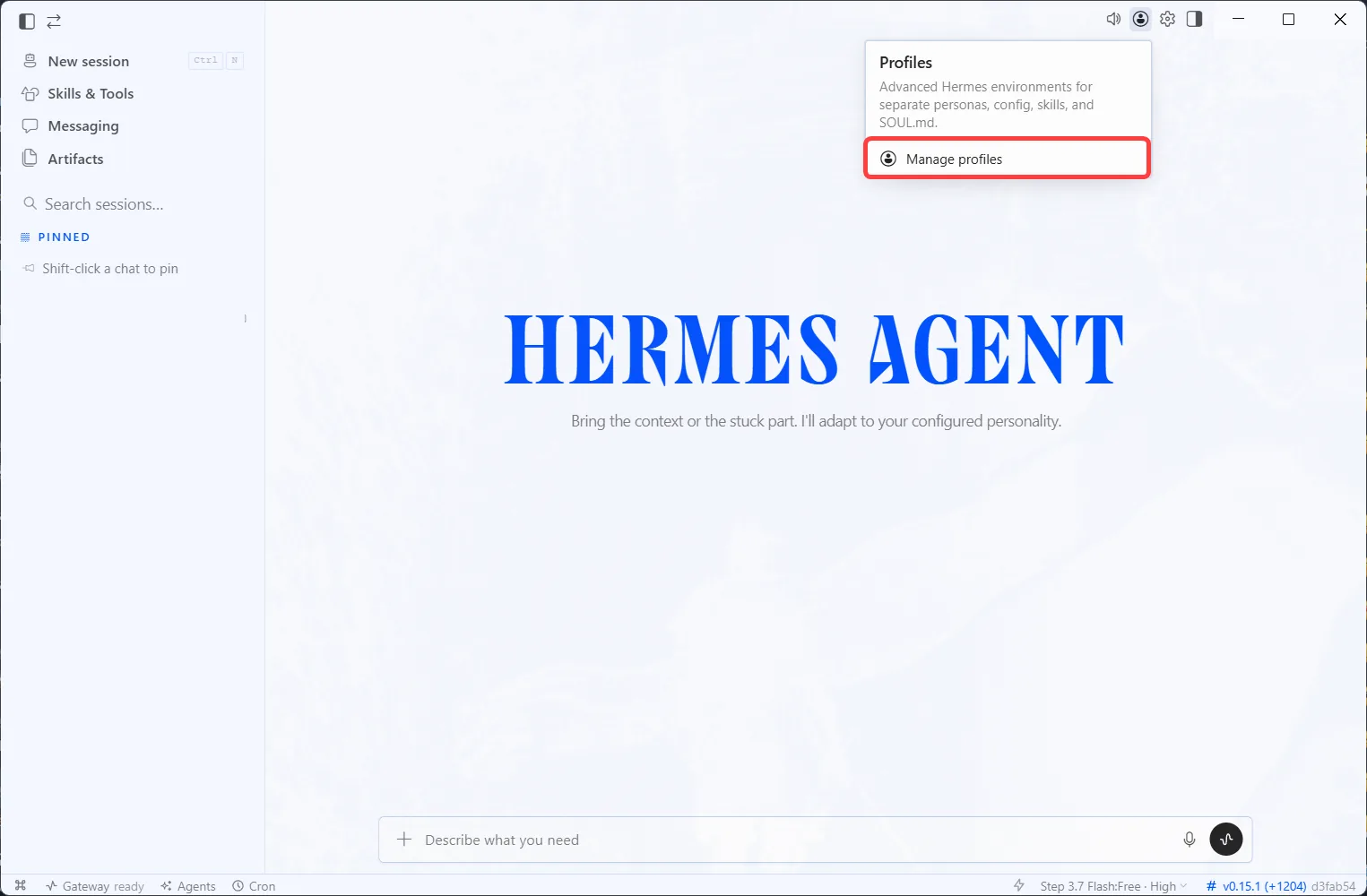
You can find them here:

In this window, describe what tasks the AI will perform, how it should respond, etc. It's best to open a separate chat and write the following prompt:

I need to create a description for the AI-Hermes profile. I am a content creator in the crypto space, and here are the tasks I perform: Your task is to create a detailed prompt based on this information. Ask me questions if necessary to make it as comprehensive as possible.

After you receive the text, paste it into the window and save it. An important note: if you try to specify work restrictions here (e.g., a directory), they will likely not work.

To switch profiles, ask directly in the chat. If you encounter any issues, ask to use the following command directly:

hermes profile use your profile name

After that, you will need to restart the application, and a new profile will open with its own chats and tools. You can also simply open a second Hermes window by launching the application β€” this way, you can work with two or more profiles simultaneously.

For each profile, you need to add the necessary models and skills separately.

Skills are stored in the folder of each individual profile under the name "Skills." You can create them manually by asking the AI and describing your requirements.

Limiting Operation #

Currently, the only way to limit its operation is to create a separate user and install it there. If you are afraid that the AI might tamper with your important files, the least time-consuming method is to constantly remind it of the restrictions within a single chat.

Other methods involve working through Docker or a virtual machine β€” but these are very time-consuming and not guaranteed to work (we've tried).

Practical Examples #

To make it easier to understand why Hermes is needed at all, let's look at a few scenarios that can be launched immediately after setup (of course, not considering its ability to work as a regular AI).

  • Working with files on a PC/searching the browser, etc. β€” in other words, any agent tasks.

  • Parallel work, or sub-agents: You can launch several isolated agents simultaneously, for example: one researches the market, another checks code, a third writes texts, a fourth reviews.

  • Cron tasks β€” autonomous agents on a schedule:

  • agent A collects data every minute;

  • agent B takes A's output and sends a summary to Telegram.

  • Monitoring specific sources: Hermes can be asked to monitor specific websites, documentation, project blogs, or update pages.

    Example task: check the selected sources every hour. If there is an important update, briefly explain what has changed, why it is important, and who it might be useful for.

    This can be used to monitor updates for products, crypto projects, documentation, and news.

Keep in mind that, in theory, all of this can be done simultaneously for multiple projects (if you manage to set up the profiles correctly).

Tips #

  1. Hermes is undoubtedly the most functional AI agent currently available, but it is still a buggy tool. It's possible (most likely) that not everything will work for you the first time β€” in such cases, just describe the error directly in the chat and ask the AI to fix it. It will take time and a lot of nerves to set everything up as you need.

  2. Don't even think about using free AIs β€” they are only suitable for testing. Since reasonable restrictions on files on your PC cannot be set, there's a high probability that free AIs will decide to work with files you haven't specified.

  3. Avoid long conversations. Periodically ask the AI to summarize and move it to another chat. Again, due to the lack of adequate restrictions, with long dialogues, any AI starts to work worse and hallucinate.

  4. Test it yourself and decide if Hermes is right for you. If you don't have a bunch of projects and don't need endless process optimization, then perhaps the regular OpenClaw (our article) or just ChatGPT with Claude will suit you. Don't optimize for the sake of optimization.

What can the AI agent Hermes do?

CryptonCrypton
938 minJun 27, 2026

Hermes is an AI agent from Nous Research. Roughly speaking, it is an analogue of OpenClaw.

In general, their functionality does not differ much, they:

  • Have advanced long-term memory

  • Can interact with files on your device, open a browser, etc.

  • Plan more complex tasks and can organize parallel agent work.

However, quite recently, Hermes released a full-fledged PC application β€” no more interacting with the console.

Moreover, Nous Research's creation still has broader functionality, and combined with the PC application β€” it is not only effective but also very convenient to use!

Therefore, in this article, we will cover Hermes β€” its setup and all the features of the application, as well as provide some usage examples.


Installation + Errors #

First, you need to download the application here πŸ‘‰ https://www.hermes-ai.net/desktop/

The whole process is a lottery: either everything will work out for you without problems, or you will spend a couple of hours (or days) trying to solve the problem.

For example, during installation, we encountered this error:

To fix it, you need to download and install git from this site: https://git-scm.com/

If, after restarting and clicking "Repair Install" and "Retry," the error does not disappear, it means Hermes cannot find git, and you need to enter the following command in the Windows console:

setx HERMES_GIT_BASH_PATH "path to git"

To find the path for git, you need to enter the following command in the command line:

where git

You need to go to this folder, find the 'bin' folder there, and copy the path to git.exe specifically within the 'bin' folder.

The final command should look like this:

setx HERMES_GIT_BASH_PATH "D:\Git\bin\bash.exe"

If, after restarting your PC, you encounter a similar error again, use this command (replace the path with your own):

[Environment]::SetEnvironmentVariable("HERMES_GIT_BASH_PATH", "D:\Git\bin\bash.exe", "User")

After this, we encountered the following error:

We resolved this by terminating the "python" process via the task manager.

If you cannot resolve these or any other errors while working with Hermes, describe the problems to any neural network, also providing the logs.

Logs can be found with this command in the console:

explorer "%LOCALAPPDATA%\hermes\logs"

Or:

explorer "$env:LOCALAPPDATA\hermes\logs"

Getting Started #

After that, restart the application, and everything should work. Next, you will need to select an AI model.

The easiest way is to choose OpenAI OAuth β€” you follow the link and log in with your ChatGPT account.

If you want it for free, use an OpenRouter account. In any case, you can configure the models after launching.

The main working panel will open.

At this stage, you can configure interaction via Telegram β€” open the "Messaging" tab and select Telegram.

In the "Bot token" field, paste the bot token created in @BotFather, and in the "Allowed Telegram user IDs" panel, paste your Telegram ID (the ID itself, not the username; you can find it using this bot β€” @username_to_id_bot) so that only you have access to the bot.

And click "Save changes."

For the bot to work, you need to start the Gateway, and you do it like this:
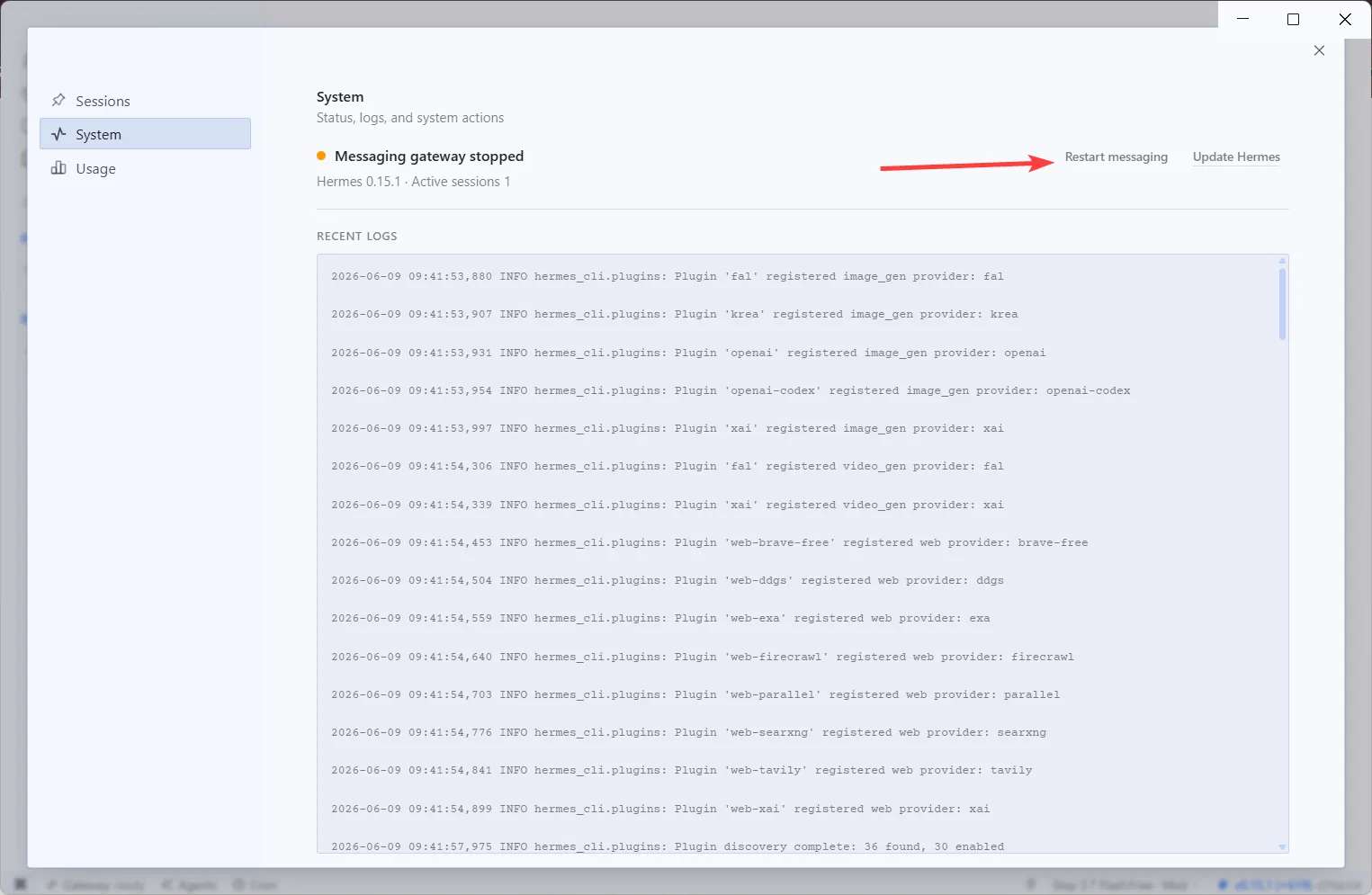
However, we recommend interacting through the application itself, as it is much more convenient than Telegram. Telegram is best left as a channel for regular notifications (more on this later).

If you want to change the model, you can do it here:
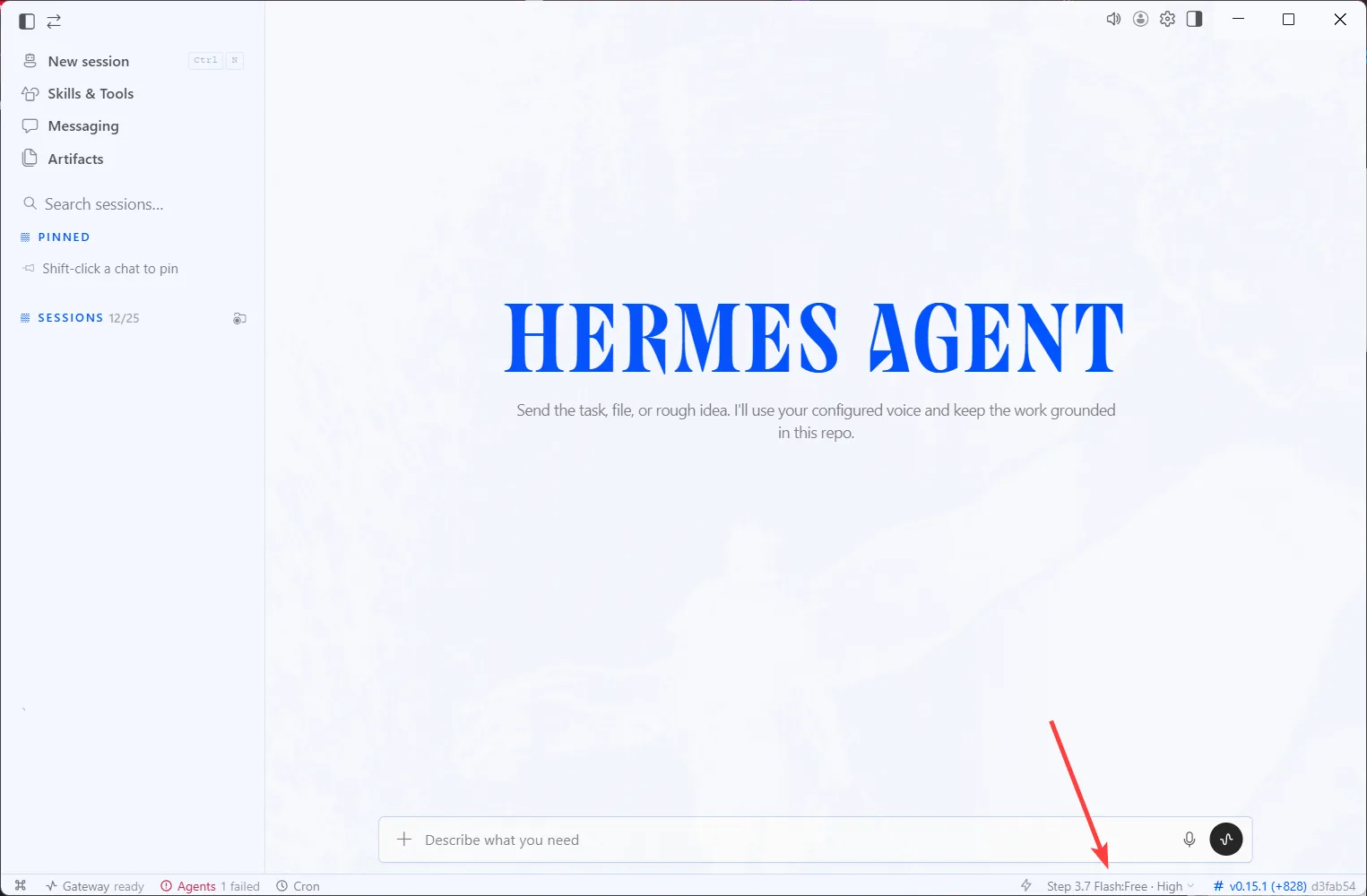
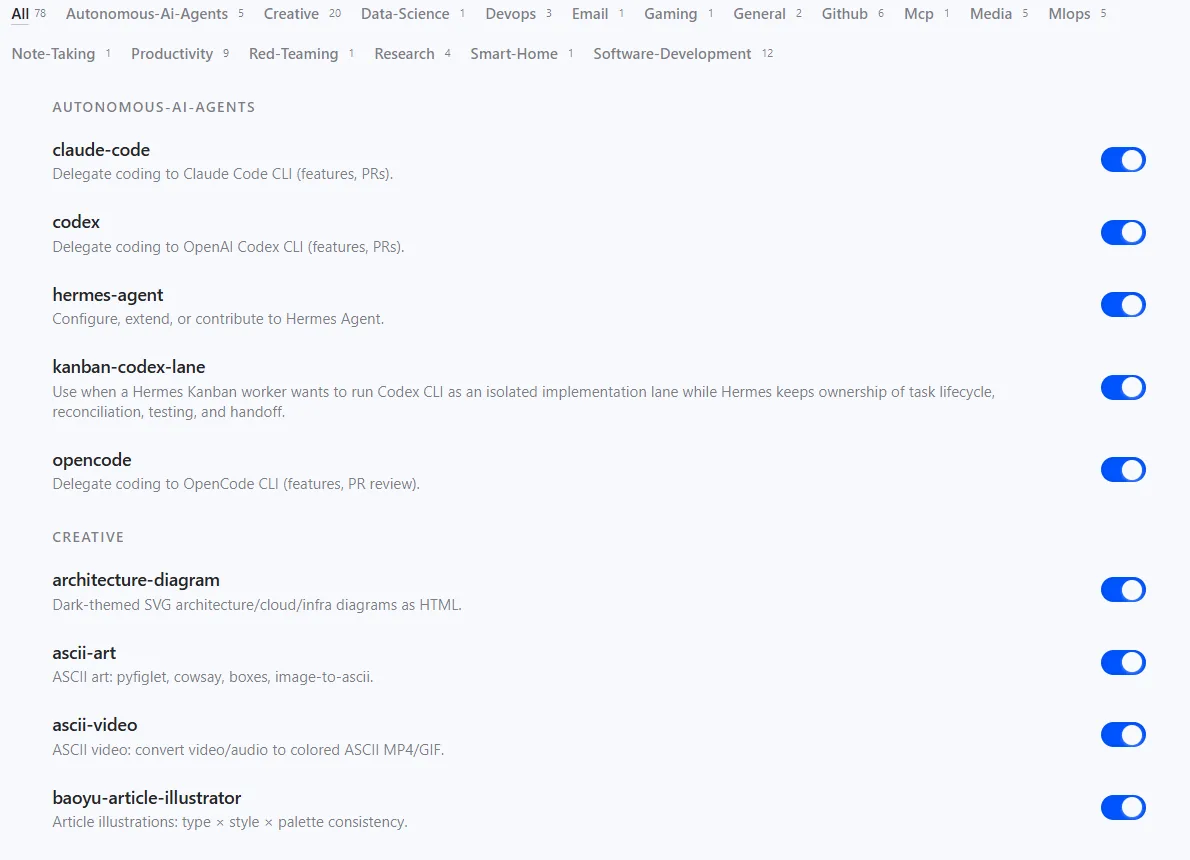
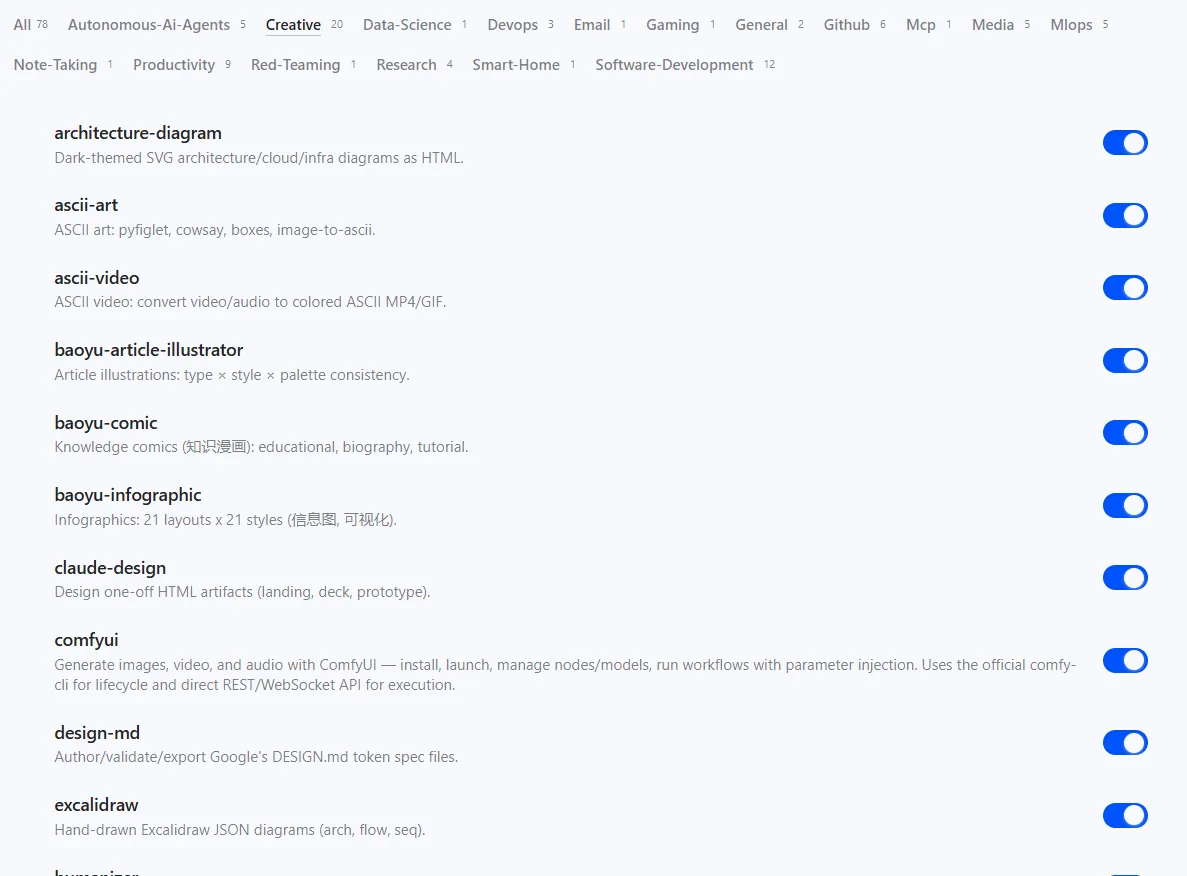
Go to the "Skills & Tools" section and disable the items you don't need (to save tokens if the AI decides to initiate some skill).
AI Model Configuration #

Hermes allows you to configure different models for different tasks, which is done here:
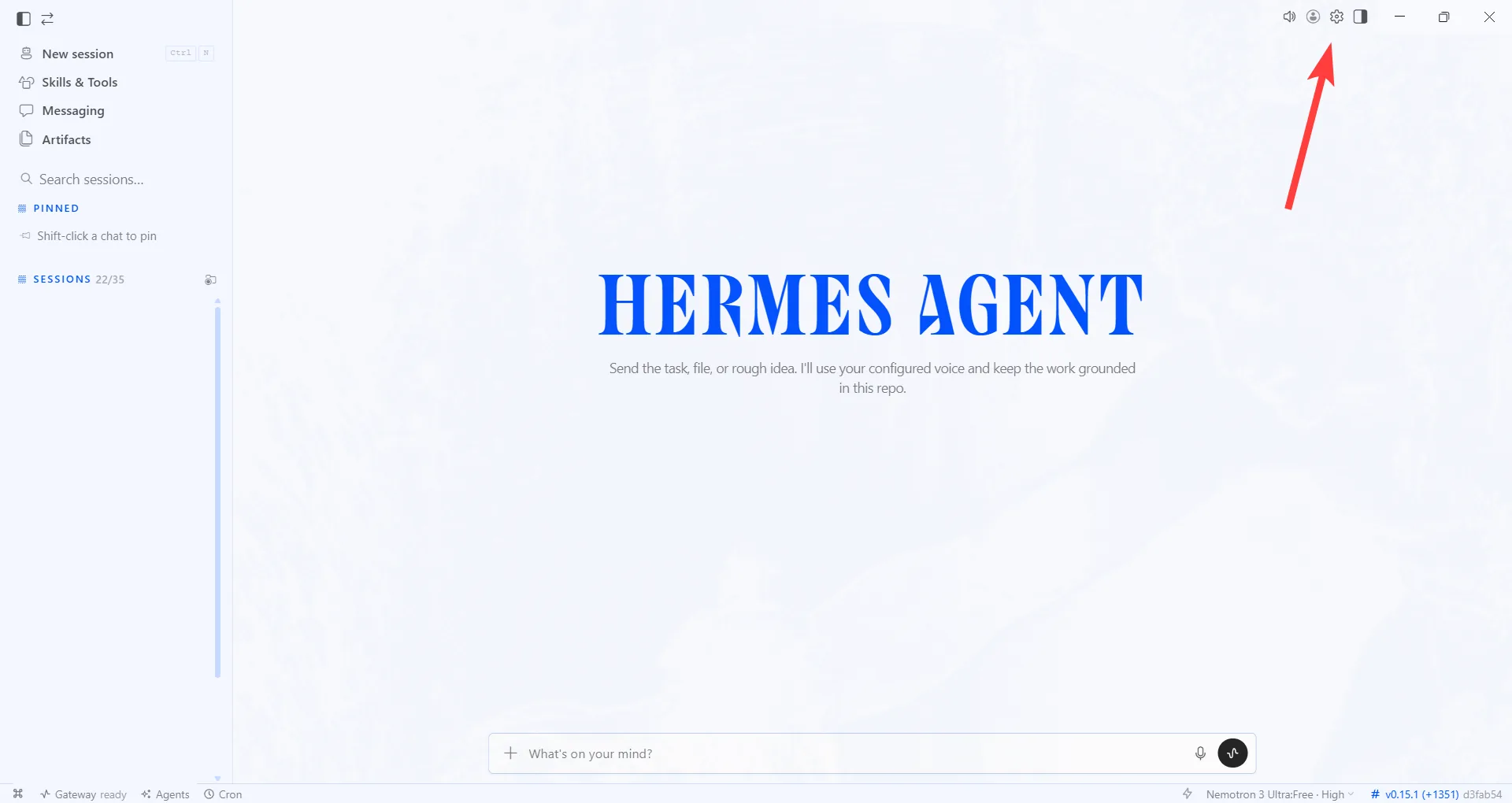
You can set up different models for image analysis, reading web pages, memory compression, etc.

In the "Providers" section, you can configure AI models.
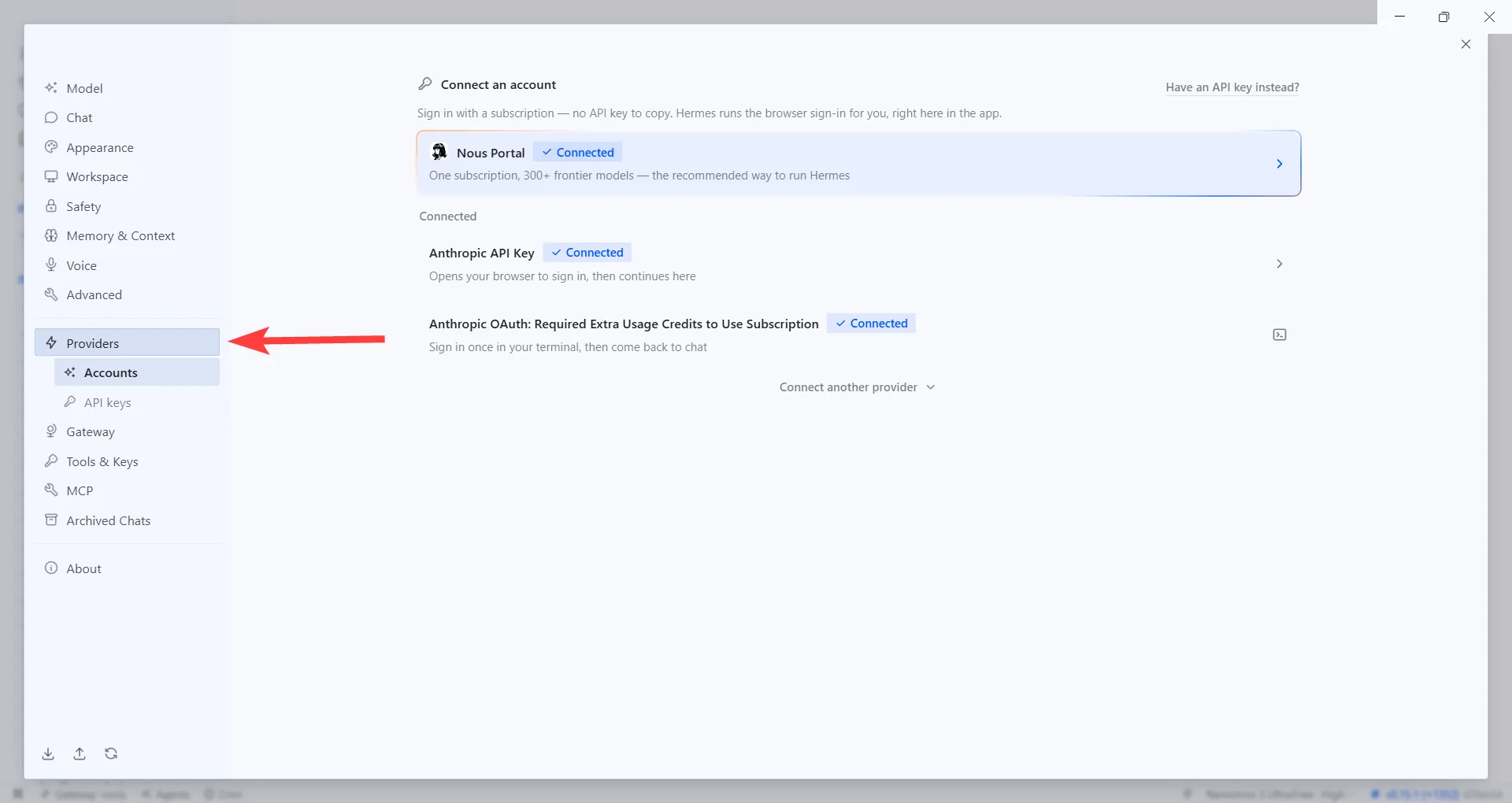
And below, provide API keys:
Automation #

The desktop application makes automation very convenient, for example:

  • Daily news summary

  • Check RSS feeds or websites once an hour

  • Website monitoring

  • Periodic backups

To create the desired Cron task, you can do it manually here:
Alternatively, describe what you need to be done in the chat, and the AI will create a recurring task itself (be sure to check and edit it in the same menu afterwards).

In the "Deliver to" section, choose where you want to receive the information. The easiest way is to receive it via Telegram.
To ensure tasks run even without the Hermes application open, open the command prompt and type the following command; then, in two prompts, you'll need to enter "Y":

hermes gateway install

After that, be sure to test if the task is working. You can do this by clicking this button:
If the task didn't work, describe the issue in the chat and ask the AI to resolve it.

Of course, to make this work, you need to keep your PC turned on.

Memory #

The main memory consists of two files:

  • MEMORY.md β€” general notes about the agent's dialogues.

  • USER.md β€” user profile: name, role, time zone, communication style, preferences.

At the beginning of each session, Hermes reads the files from the disk and integrates them into the system prompt as a frozen block. Changes made during operation are recorded immediately.

To prevent these two files from ballooning, there is a size limit. Therefore, we recommend asking the agent to save the entire session into a separate md-document in a designated folder after each of your sessions. Then, ask it to review the files to restore context.

Moreover, all this can be automated. To do this, ask to create a Cron task daily at 23:00 with the following prompt:

You are a diary assistant. Your task is to create an evening summary for today.

RULES:
1. Today's date: $(date +%Y-%m-%d)
2. Diary path:
3. First, make sure the file exists. If not, create it with the header "## YYYY-MM-DD β€” Diary".
4. Analyze today's sessions using session_search (query="today", sort="newest", limit=5) and highlight 3-5 important facts.
5. Add a block "### Evening Summary" to the file with brief bullet points.
6. Each bullet point should be 1-2 lines, only facts: what was decided, what was learned, what was planned.
7. Do not add fluff, do not comment, do not repeat the same thing.
8. Use patch or file write to add the summary to the end of the file.
9. If there were no important events, write "A simple day, nothing noteworthy."

Format:
### Summary
- ...
- ...
- ...

Profiles #

For full functionality, you also need to set up profiles β€” these are like separate workspaces with their own chats, skills, file access, configurations, and more.

For example, if you manage multiple projects, you can create different profiles to avoid mixing personal projects and work. In essence, it's similar to the project feature in ChatGPT.

You can find them here:
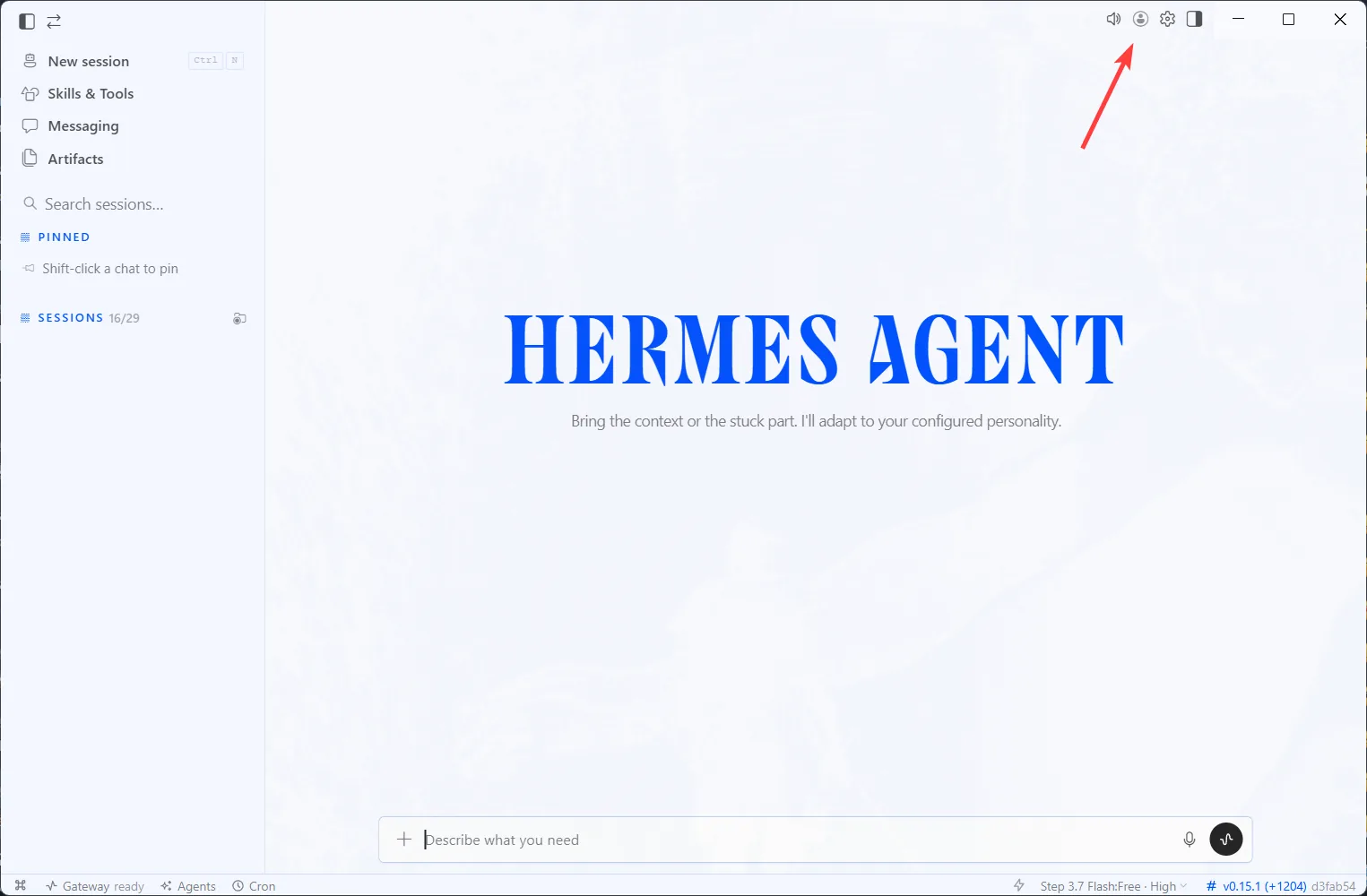
In this window, describe what tasks the AI will perform, how it should respond, etc. It's best to open a separate chat and write the following prompt:

I need to create a description for the AI-Hermes profile. I am a content creator in the crypto space, and here are the tasks I perform: Your task is to create a detailed prompt based on this information. Ask me questions if necessary to make it as comprehensive as possible.

After you receive the text, paste it into the window and save it. An important note: if you try to specify work restrictions here (e.g., a directory), they will likely not work.

To switch profiles, ask directly in the chat. If you encounter any issues, ask to use the following command directly:

hermes profile use your profile name

After that, you will need to restart the application, and a new profile will open with its own chats and tools. You can also simply open a second Hermes window by launching the application β€” this way, you can work with two or more profiles simultaneously.

For each profile, you need to add the necessary models and skills separately.

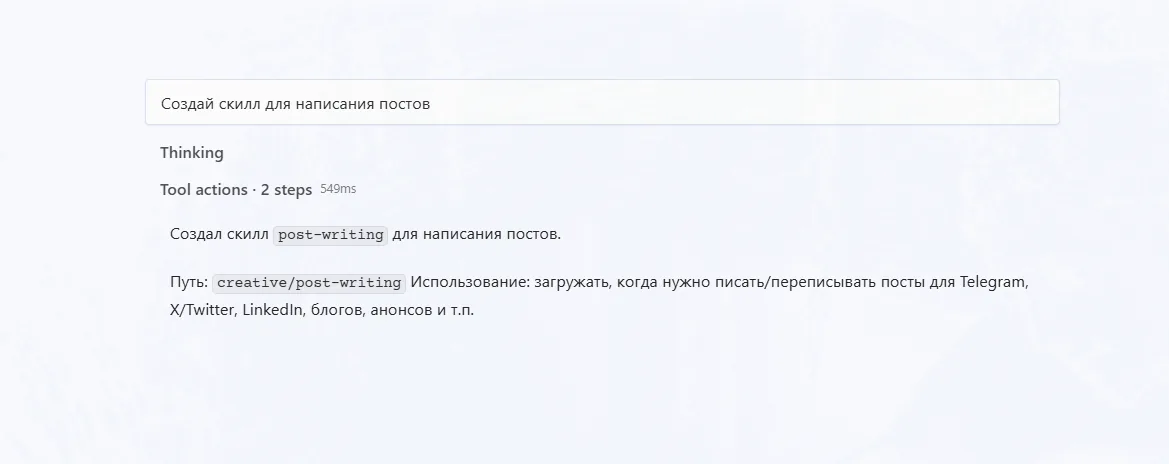
Skills are stored in the folder of each individual profile under the name "Skills." You can create them manually by asking the AI and describing your requirements.
Limiting Operation #

Currently, the only way to limit its operation is to create a separate user and install it there. If you are afraid that the AI might tamper with your important files, the least time-consuming method is to constantly remind it of the restrictions within a single chat.

Other methods involve working through Docker or a virtual machine β€” but these are very time-consuming and not guaranteed to work (we've tried).

Practical Examples #

To make it easier to understand why Hermes is needed at all, let's look at a few scenarios that can be launched immediately after setup (of course, not considering its ability to work as a regular AI).

  • Working with files on a PC/searching the browser, etc. β€” in other words, any agent tasks.

  • Parallel work, or sub-agents: You can launch several isolated agents simultaneously, for example: one researches the market, another checks code, a third writes texts, a fourth reviews.

  • Cron tasks β€” autonomous agents on a schedule:

  • agent A collects data every minute;

  • agent B takes A's output and sends a summary to Telegram.

  • Monitoring specific sources: Hermes can be asked to monitor specific websites, documentation, project blogs, or update pages.

    Example task: check the selected sources every hour. If there is an important update, briefly explain what has changed, why it is important, and who it might be useful for.

    This can be used to monitor updates for products, crypto projects, documentation, and news.

Keep in mind that, in theory, all of this can be done simultaneously for multiple projects (if you manage to set up the profiles correctly).

Tips #

  1. Hermes is undoubtedly the most functional AI agent currently available, but it is still a buggy tool. It's possible (most likely) that not everything will work for you the first time β€” in such cases, just describe the error directly in the chat and ask the AI to fix it. It will take time and a lot of nerves to set everything up as you need.

  2. Don't even think about using free AIs β€” they are only suitable for testing. Since reasonable restrictions on files on your PC cannot be set, there's a high probability that free AIs will decide to work with files you haven't specified.

  3. Avoid long conversations. Periodically ask the AI to summarize and move it to another chat. Again, due to the lack of adequate restrictions, with long dialogues, any AI starts to work worse and hallucinate.

  4. Test it yourself and decide if Hermes is right for you. If you don't have a bunch of projects and don't need endless process optimization, then perhaps the regular OpenClaw (our article) or just ChatGPT with Claude will suit you. Don't optimize for the sake of optimization.